
For sellers · Services
Listing a service
Create a service section
Go to Menu and tap Add section. Choose Service as the type and give the section a descriptive name — for example “Graphic Design” or “Home Cleaning”.
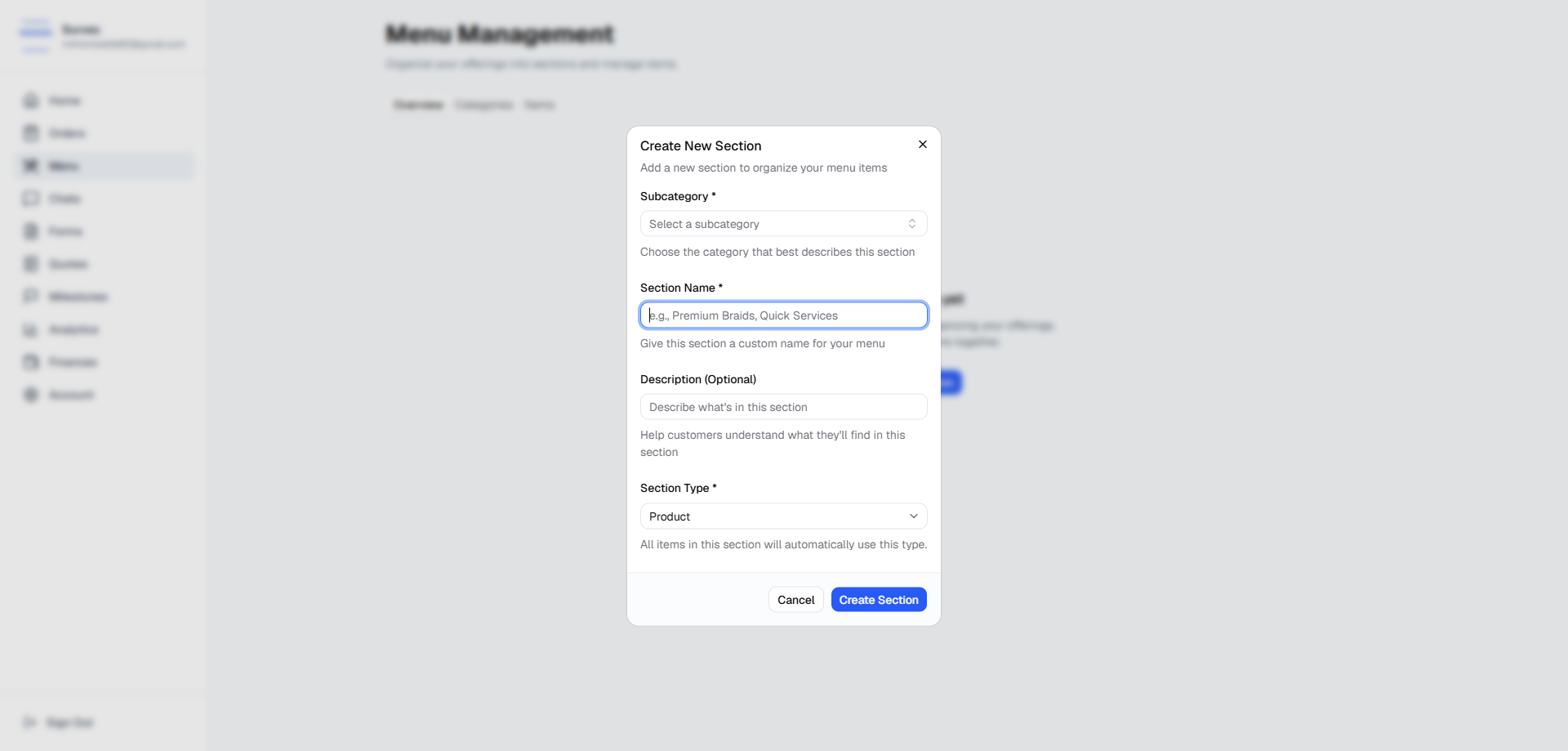
The new section form with Service selected. Add a service listing
Inside the new section, tap Add listing. Fill in:
- Title — be specific. “Logo design — 3 concepts” is clearer than “Design.”
- Description — explain what's included, your process, and what the buyer should expect.
- Pricing type — choose Fixed, From, or Hourly depending on how you charge. This is a display hint; the final price is always set in the quote.
- Images — portfolio shots or examples of past work help buyers decide to message you.
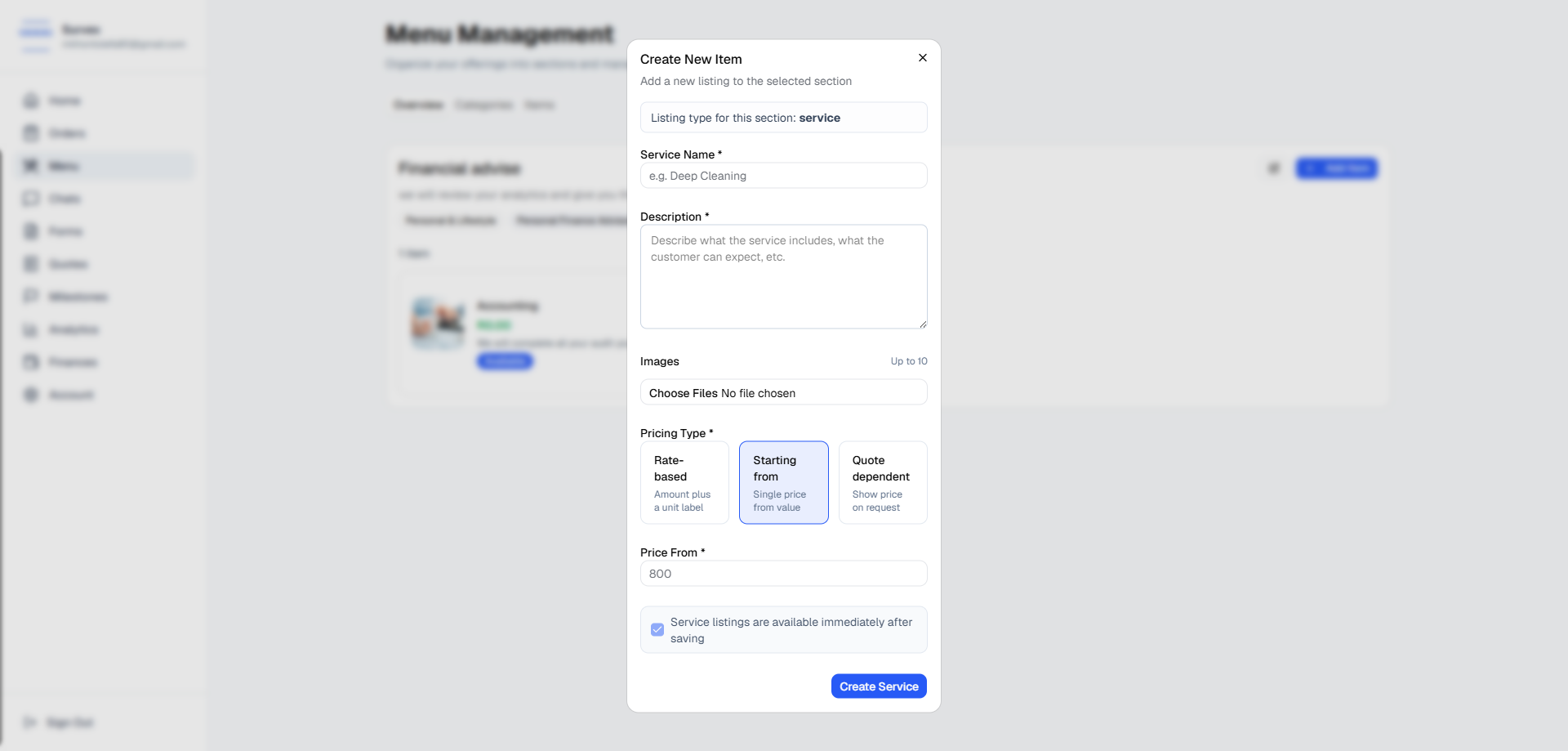
A service listing form ready to publish. Create an intake form for the section
This step is required. Every service section must have an intake form. When you add a service listing, the form builder appears at the top of the listing form — you must save the intake form before the listing can be created.
Give the form a title and add at least one field. Good questions to include:
- Project brief or description
- Deadline or preferred start date
- Budget range
- Any specific requirements or file references

The required intake form panel shown at the top of the service listing form. Click Save Intake Form first. The form turns green and unlocks the rest of the listing form. You can always edit the form later from Forms in your dashboard.
When a buyer messages you, they complete this form before the first message. Their answers are pinned to the conversation so you always have context when you open the chat.Publish the listing
Toggle Available on and save. The listing is now live. Buyers can find it in Browse, read your description, and tap Message provider to start a conversation.
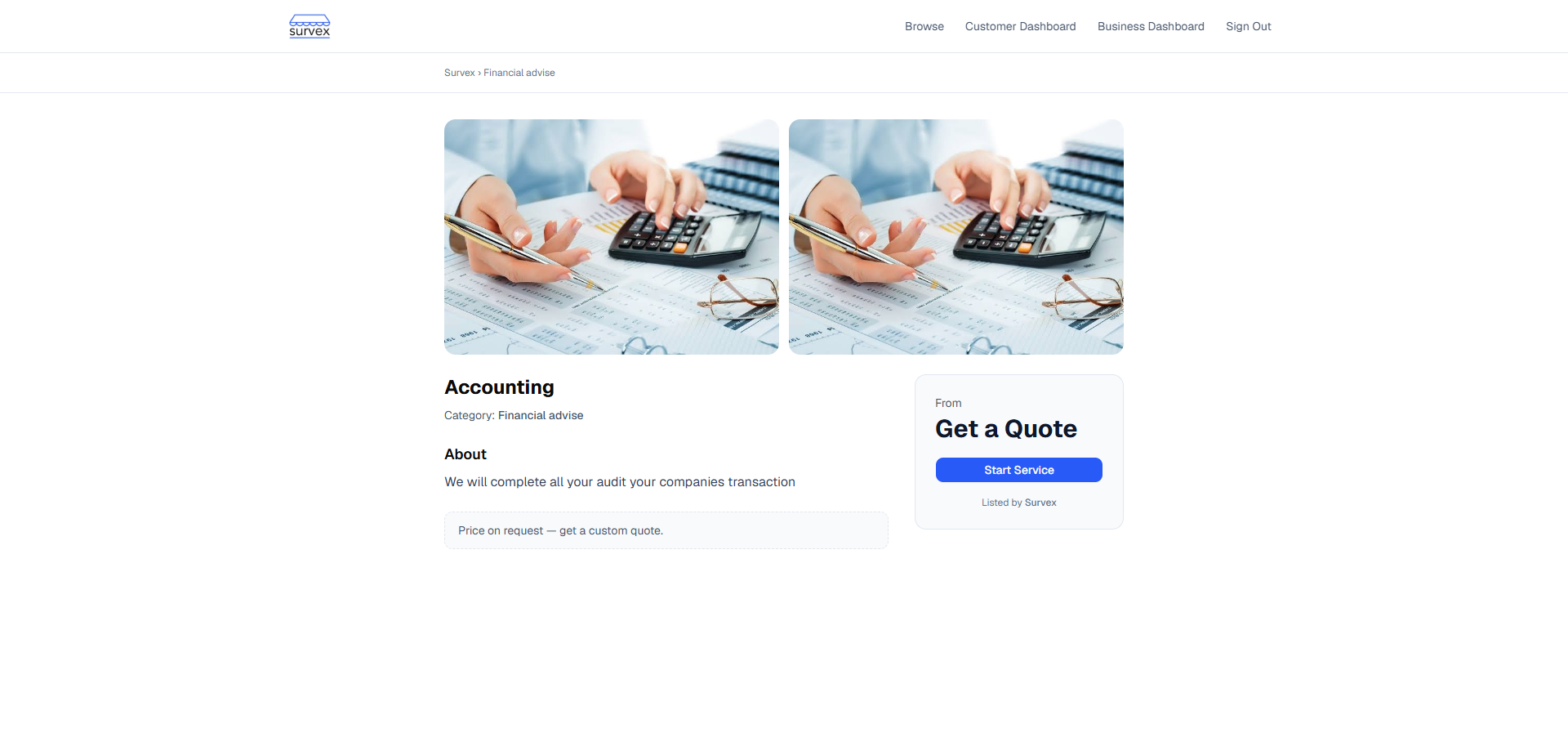
A published service listing in the Menu view. Receive your first enquiry
When a buyer messages you, the conversation appears under Chats. You'll also get an email notification. Open the conversation to read their intake form answers and start discussing the job — when you're ready, send them a quote.
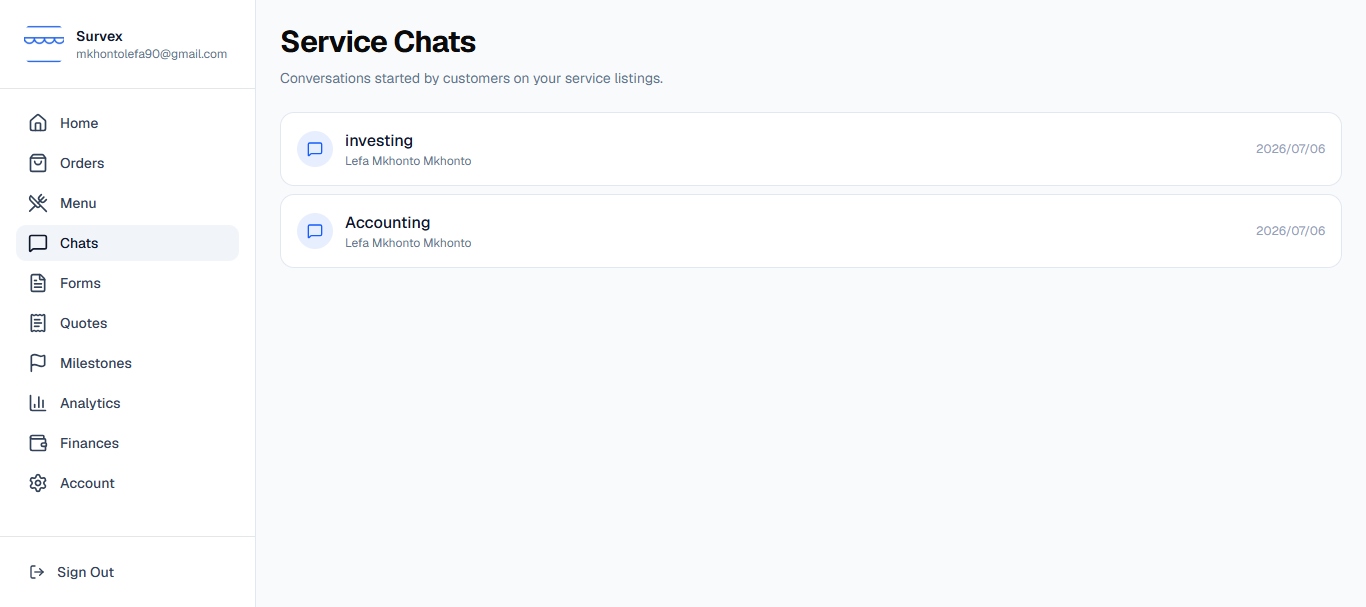
A new enquiry in the seller's Chats inbox. Not sure how to structure a quote? See the sending a quote guide.